SVG vs PNG: Understanding the Two Most Important Formats
If you've ever purchased a digital design or downloaded graphics online, you've likely encountered SVG and PNG files. But which one should you use? What's the difference? And when does it matter?
Understanding these two file formats is essential for anyone working with digital design—whether you're a professional designer, small business owner, or hobbyist. Choosing the right format can mean the difference between a sharp, scalable logo and a pixelated mess, or between a fast-loading website and a slow one.
In this comprehensive guide, we'll dive deep into SVG and PNG formats, explain their differences, and help you choose the right one for every project. We'll cover everything from the technical details to practical tips you can use right away.
Raster vs Vector: The Fundamental Difference
Before we compare SVG and PNG, it's crucial to understand the fundamental difference between raster and vector graphics. This distinction affects everything about how these files work and when to use them.
Raster Images (PNG, JPG, GIF)
Raster images are made of pixels—tiny squares of color arranged in a grid. Think of a raster image like a mosaic: each pixel is a small tile, and together they form the complete picture.
Key characteristics:
- Resolution-dependent: The image has a fixed number of pixels (e.g., 1000 × 1000 pixels)
- Scaling limitation: Enlarge it too much, and you'll see those individual pixels (pixelation)
- Best for: Photographs, complex graphics with many colors, detailed digital art
- File size: Can be large, especially at high resolutions
When you zoom in on a raster image, you're essentially looking at larger and larger squares. That's why logos or graphics that need to scale don't work well as raster images—they lose sharpness as they grow.
Vector Images (SVG, EPS, AI)
Vector images are made of mathematical paths—lines, curves, and shapes defined by mathematical equations rather than pixels. Think of vector graphics like instructions for drawing: "Draw a circle with radius 50, fill it with blue, place it at coordinates X,Y."
Key characteristics:
- Resolution-independent: No fixed pixel dimensions
- Perfect scaling: Can be resized infinitely without quality loss
- Best for: Logos, icons, simple to moderate illustrations, text-based graphics
- File size: Usually smaller for simple graphics, can grow for complex ones
When you zoom in on a vector image, the computer recalculates the math—the circle stays perfectly round, lines stay perfectly sharp, no matter how large you make it.
The Bottom Line: If you need something that scales from a business card to a billboard, vector (SVG) is your friend. If you're working with photos or complex artistic graphics, raster (PNG) is the way to go.
SVG (Scalable Vector Graphics): The Vector Champion
SVG stands for Scalable Vector Graphics, and it's become the go-to format for web graphics, logos, and scalable designs. Let's explore what makes SVG so powerful.
What is SVG?
SVG is an XML-based vector graphics format. That means:
- It's made of mathematical shapes and paths (not pixels)
- It's actually text-based code (you can open an SVG in a text editor and see code)
- It scales perfectly to any size
- It's designed for the web but works everywhere
Key Characteristics
Scalability: This is SVG's superpower. An SVG logo can be displayed at 16×16 pixels for a favicon, 200×200 pixels for a website header, or 2000×2000 pixels for a banner—all from the same file, with perfect quality every time.
File Size: For simple graphics like logos and icons, SVG files are often remarkably small—sometimes just a few kilobytes. However, complex illustrations with many paths can create larger SVG files.
Resolution: SVG is resolution-independent. There's no "72 DPI" or "300 DPI" concept—the image renders at whatever resolution your screen or printer can handle.
Editability: SVG files are highly editable. You can:
- Edit them with design software (Illustrator, Inkscape, Figma)
- Edit them with code (any text editor)
- Style them with CSS
- Add interactivity with JavaScript
Best For
SVG excels at:
- Logos and brand marks (especially when you need them at multiple sizes)
- Icons and symbols (perfect for websites and apps)
- Simple illustrations (line art, diagrams, infographics)
- Web graphics (buttons, badges, decorative elements)
- Infographics (charts, graphs, data visualization)
- Text-based graphics (typography, wordmarks)
Advantages of SVG
✅ Perfect scaling - Never pixelates, no matter how large you make it
✅ Small file sizes - Often smaller than PNG for simple graphics
✅ Editable with code - Can be modified with CSS, JavaScript, or text editors
✅ Web-friendly - Designed for modern browsers
✅ Stylable - Colors, sizes, and styles can be changed with CSS
✅ Interactive - Supports animations and user interactions
✅ Accessible - Screen readers can read SVG text content
✅ Searchable - Text in SVG can be indexed by search engines
✅ No quality loss - Always renders at the best quality possible
Limitations of SVG
❌ Not ideal for complex illustrations - Graphics with thousands of paths can create very large files
❌ Not suitable for photographs - Photos are inherently raster; SVG can't handle them well
❌ Limited color gradients - While supported, complex photo-realistic gradients work better in raster
❌ Browser compatibility - While excellent now, very old browsers may have issues (rare concern in 2025)
Software for Working with SVG
Professional tools:
- Adobe Illustrator (industry standard)
- CorelDRAW
- Affinity Designer
Free options:
- Inkscape (powerful open-source vector editor)
- Figma (browser-based, free tier available)
- Canva (online design tool)
For code editing:
- Any text editor (VS Code, Sublime Text, Notepad++)
- Can modify SVG code directly
When to Use SVG
Choose SVG when:
- You're creating logos that need to work at multiple sizes
- Building a website or web application
- You need graphics to scale without quality loss
- File size optimization matters (for web performance)
- You want to edit or customize designs easily
- Working with simple to moderately complex graphics
- Creating icons, symbols, or UI elements
Real-World SVG Examples
- Website logos - The logo in the header that scales on mobile devices
- Social media icons - Those Facebook, Twitter, Instagram icons
- App icons - Icons that need to look sharp on any screen size
- Infographics - Charts and graphs that stay crisp when zoomed
- Web illustrations - Simple graphics that enhance website design
- Print logos - When you need one file that works from business cards to billboards
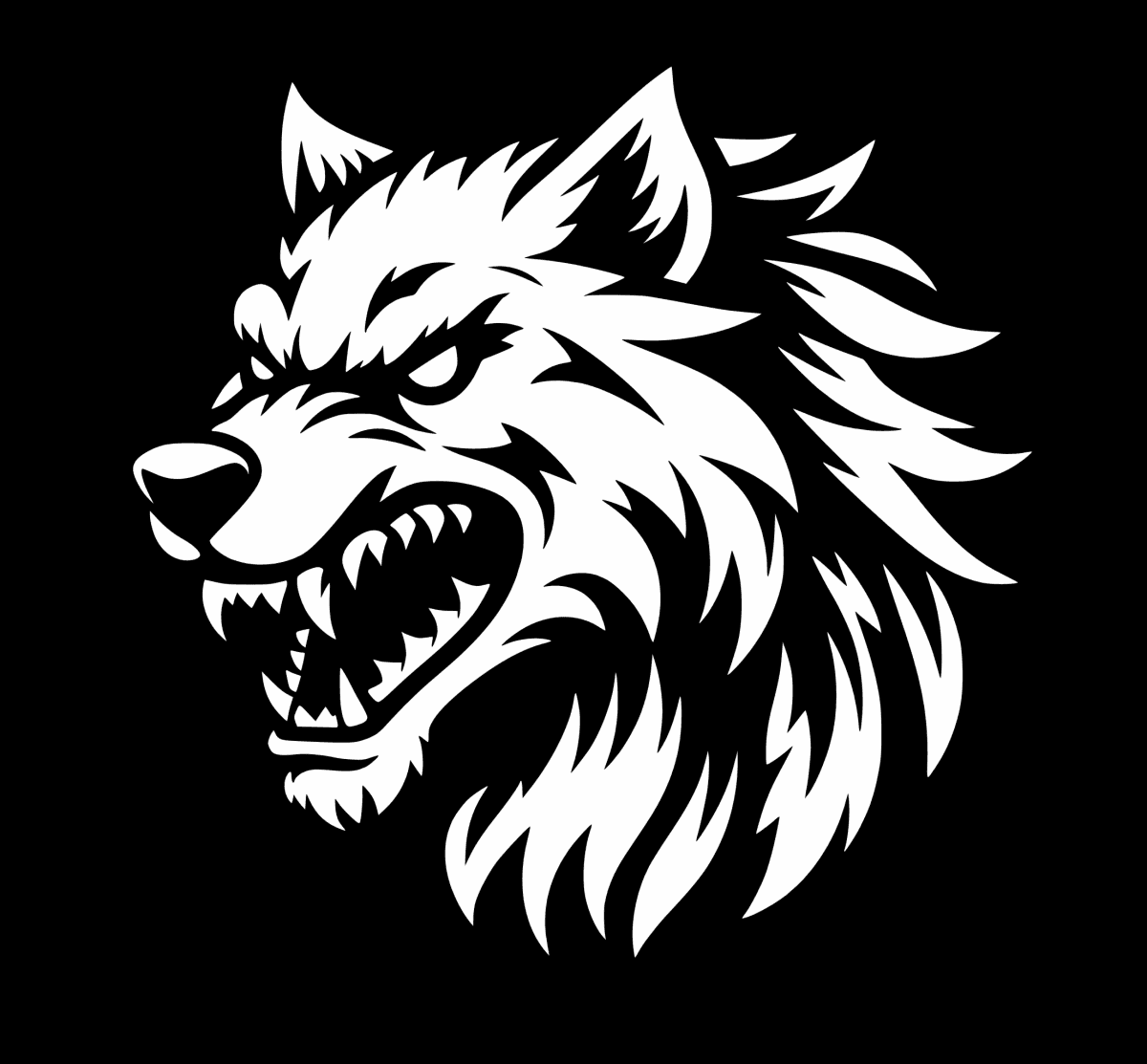
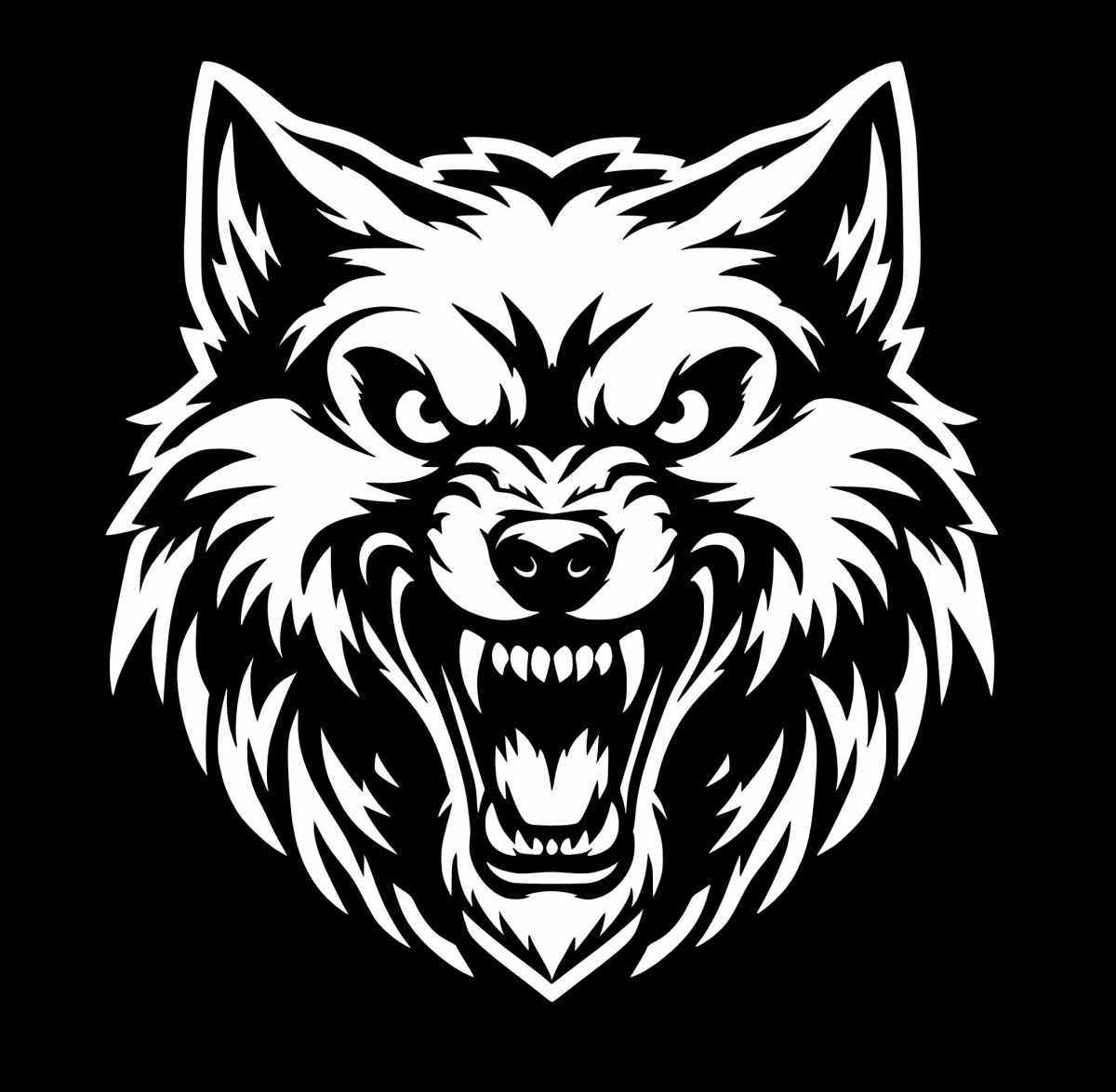
To see SVG in action, here are some examples of scalable designs available in this format:
PNG (Portable Network Graphics): The Transparency Expert
PNG stands for Portable Network Graphics, and it's the workhorse of raster image formats. While it might seem less "modern" than SVG, PNG is incredibly versatile and essential for many design tasks.
What is PNG?
PNG is a raster graphics format that uses lossless compression. That means:
- It's made of pixels arranged in a grid
- No quality is lost when the file is saved (unlike JPEG)
- It supports full transparency (alpha channel)
- It was designed as an improvement over GIF format
Key Characteristics
Fixed Resolution: A PNG image has specific pixel dimensions—for example, 800×600 pixels. These dimensions are fixed, which is both a limitation and a feature.
Transparency Support: PNG's standout feature is its alpha channel transparency. This means pixels can be completely transparent, partially transparent, or opaque. This makes PNG perfect for logos and graphics that need to sit on different colored backgrounds.
Lossless Compression: Unlike JPEG, PNG doesn't lose quality when you save it. Every pixel is preserved exactly as you created it. However, this can result in larger file sizes.
Color Support: PNG supports:
- PNG-8: Up to 256 colors, smaller file size, basic transparency
- PNG-24: Millions of colors (24-bit), larger file size, full alpha transparency (most common)
- PNG-32: 24-bit color + 8-bit alpha channel (what people usually mean by PNG-24)
Best For
PNG excels at:
- Graphics with transparency (logos on different backgrounds)
- Digital art and illustrations (especially with complex effects)
- Screenshots (preserves exact pixels)
- Web graphics with effects (drop shadows, glows, complex filters)
- Photography (when transparency isn't needed, though JPEG is often better for photos)
- Social media graphics (often have specific size requirements)
- Product mockups (realistic representations)
Advantages of PNG
✅ Perfect transparency - Full alpha channel support for smooth edges
✅ Lossless quality - No compression artifacts or quality loss
✅ Wide compatibility - Works everywhere, universal support
✅ Complex effects - Handles shadows, glows, and filters beautifully
✅ Photographic quality - Excellent for realistic images
✅ Specific dimensions - Perfect when you need exact pixel sizes
✅ Detail preservation - Maintains fine details and gradients
✅ No licensing restrictions - Free and open format
Limitations of PNG
❌ Not scalable - Will pixelate if enlarged beyond original size
❌ Large file sizes - High-resolution PNGs can be quite large
❌ Fixed dimensions - Need different files for different sizes
❌ Limited editability - Harder to edit than vector formats
❌ Not ideal for simple graphics - SVG is usually better for logos and icons
Software for Working with PNG
Professional tools:
- Adobe Photoshop (industry standard for raster editing)
- Affinity Photo
- GIMP (free, open-source alternative)
Simple editors:
- Canva (online)
- Photopea (free browser-based Photoshop alternative)
- Built-in OS image editors (Preview on Mac, Paint on Windows)
When to Use PNG
Choose PNG when:
- You need transparency (logos, icons with transparent backgrounds)
- Creating digital art or complex illustrations
- Working with graphics that have drop shadows, glows, or other effects
- You need specific pixel dimensions (social media posts, banners)
- The design is too complex for SVG
- Working with photography or realistic images
- Creating screenshots or exact pixel representations
- Maximum compatibility is required
PNG Variants Explained
PNG-8:
- Up to 256 colors
- Smaller file size
- Basic transparency (on/off, not smooth gradients)
- Good for simple graphics with limited colors
PNG-24 (most common):
- Millions of colors (24-bit)
- Full alpha channel transparency
- Larger file size
- Best for most graphics with transparency needs
Real-World PNG Examples
- Logo files with transparent backgrounds - Logos that work on any background color
- Website graphics - Banners, hero images, buttons with effects
- Social media graphics - Instagram posts, Facebook covers, Twitter headers
- Digital art prints - Illustrations and artwork for printing
- Product mockups - Showing products in realistic settings
- Screenshots - Documentation, tutorials, presentations
- Icons with effects - When you need shadows, glows, or gradients
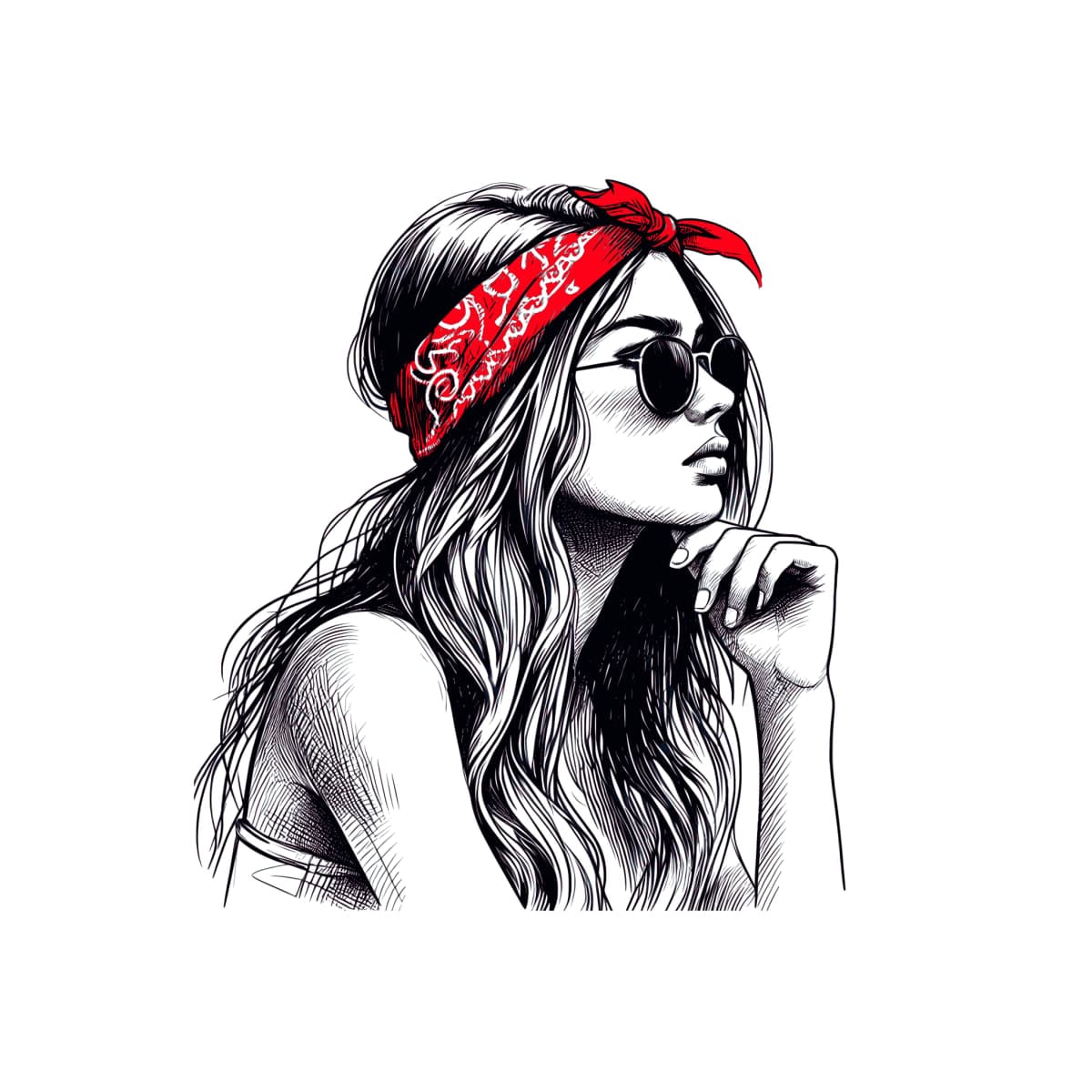
Here are some examples of designs that work well in PNG format:


SVG vs PNG: Direct Comparison
Now that we understand both formats individually, let's compare them head-to-head to help you make the right choice.
| Feature | SVG | PNG |
|---|---|---|
| Type | Vector (mathematical paths) | Raster (pixels) |
| Scalability | ✅ Perfect (infinite scaling) | ❌ Fixed resolution |
| File Size (Simple Graphics) | ✅ Usually smaller | ⚠️ Can be larger |
| File Size (Complex Graphics) | ⚠️ Can be very large | ✅ Usually better |
| Transparency | ✅ Supported | ✅ Full alpha channel |
| Editable | ✅ Easy (code or software) | ⚠️ Limited (pixel editing) |
| Web Performance | ✅ Excellent (small, scalable) | ⚠️ Depends on optimization |
| Browser Support | ✅ Modern browsers (excellent) | ✅ Universal (everywhere) |
| Print Quality | ⚠️ Depends on complexity | ✅ Excellent (at high resolution) |
| Best Use Case | Logos, icons, simple graphics | Complex graphics, photos, transparency |
When to Choose SVG
Choose SVG when you need:
- ✅ Graphics that scale (logos, icons, simple illustrations)
- ✅ Small file sizes for web performance
- ✅ Easy editing and customization
- ✅ Web-based projects
- ✅ Graphics that need to work at multiple sizes
- ✅ Simple to moderately complex designs
Perfect SVG use cases:
- Website logos
- App icons
- UI elements and buttons
- Simple illustrations
- Infographics
- Icons and symbols
When to Choose PNG
Choose PNG when you need:
- ✅ Complex graphics with many effects
- ✅ Photography or realistic images
- ✅ Perfect transparency on complex graphics
- ✅ Specific pixel dimensions
- ✅ Maximum compatibility
- ✅ Graphics too complex for SVG
Perfect PNG use cases:
- Logos with drop shadows or glows
- Digital art and illustrations
- Social media graphics
- Product mockups
- Screenshots
- Complex web graphics
Can You Use Both?
Absolutely! Many professional design products include both SVG and PNG versions. This gives you:
- SVG for scalable uses (web, print at various sizes)
- PNG for specific size requirements (social media, specific web dimensions)
Having both formats gives you maximum flexibility. You can use SVG for the website version and PNG for that Instagram post that requires exactly 1080×1080 pixels.
SVG vs PNG Decision Guide: Which Should You Choose?
Making the right choice between SVG and PNG often comes down to asking the right questions about your project. Use this decision guide to help you choose.
Quick Decision Tree
Choose SVG if your project involves:
- ✅ Creating a logo or icon
- ✅ Building a website or web application
- ✅ Need the graphic to scale (business cards to billboards)
- ✅ Want the smallest possible file size
- ✅ Need to edit or customize the design later
- ✅ Creating simple to moderate complexity graphics
- ✅ Working with text, shapes, and clean lines
Choose PNG if your project involves:
- ✅ Need transparency on complex graphics
- ✅ Creating digital art or illustrations
- ✅ Working with photographs
- ✅ Need specific pixel dimensions
- ✅ Graphic has complex effects (shadows, glows, filters)
- ✅ Creating graphics for social media (often specific sizes)
- ✅ Working with a design that's too complex for SVG
Detailed Decision Matrix
| Your Project | Recommended Format | Why |
|---|---|---|
| Website Logo | SVG | Scalable, small file size, editable, perfect for responsive design |
| Social Media Logo | PNG (specific size) or SVG | Depends on platform—some require exact dimensions, others accept SVG |
| Web Icons | SVG | Small, scalable, perfect for UI elements at any size |
| Digital Art Print | PNG (high-res) | Preserves detail, specific print dimensions, complex artwork |
| Illustration (Simple) | SVG | Scalable, editable, small file size |
| Illustration (Complex) | PNG | Better for complex effects, gradients, and detail |
| Infographic | SVG | Scalable text, charts stay sharp, small file size |
| Product Mockup | PNG | Realistic effects, specific dimensions, photo-quality |
| App Icon | Both | SVG for vector version, PNG for platform-specific sizes |
| Print Logo (Large Scale) | SVG or EPS | Scalable without quality loss, one file for all sizes |
| Email Signature | PNG (small size) | Universal compatibility, specific dimensions |
| Screenshot | PNG | Preserves exact pixels, transparency if needed |
Common Scenarios
Scenario 1: You're creating a logo for your business
Answer: Start with SVG. It will work everywhere—from your website to business cards to billboards. Many designers provide both SVG and PNG versions of logos, but SVG is the foundation.
Scenario 2: You need a graphic for an Instagram post
Answer: PNG is usually better here. Instagram requires specific dimensions (1080×1080 for square posts), and you want to control the exact pixels. While you could use SVG, PNG gives you more control over the final appearance.
Scenario 3: You're building a website and need icons
Answer: SVG is perfect. Icons need to scale for different screen sizes (mobile, tablet, desktop), and SVG files are small and scalable. This improves your website's performance and user experience.
Scenario 4: You're creating digital art with complex shading and effects
Answer: PNG is the right choice. Complex digital art with gradients, shadows, and detailed effects works better as a raster image. SVG would create an enormous file or lose detail.
Frequently Asked Questions: SVG vs PNG
Let's address the most common questions about choosing between SVG and PNG.
Q: Should I use SVG or PNG for my logo?
A: SVG is generally better for logos because it scales perfectly and usually has a smaller file size. Use PNG only if you need specific pixel dimensions or if your logo is too complex for SVG. Many professional logo packages include both formats for maximum flexibility.
Recommendation: Start with SVG, and create PNG versions for specific size requirements (social media, email signatures, etc.).
Q: Can I convert PNG to SVG?
A: Converting PNG (raster) to SVG (vector) requires vectorization or tracing, which converts pixels to mathematical paths. Results vary:
- Simple graphics: Auto-tracing tools can work reasonably well
- Complex graphics: Often produces messy, inaccurate results
- Photographs: Not recommended—stick with PNG or JPEG
Better approach: If you need SVG, start with SVG. If you only have PNG and need SVG, consider recreating the design in vector format rather than tracing.
Tools for tracing: Adobe Illustrator's Image Trace, Inkscape's Trace Bitmap, online vectorization services.
Q: Can I convert SVG to PNG?
A: Yes! SVG to PNG conversion is easy and reliable:
- Use design software (Illustrator, Inkscape) and export to PNG at your desired dimensions
- Use online converters (many free options available)
- Use command-line tools (Inkscape, ImageMagick)
- Set the exact pixel dimensions you need
Note: Once converted, you lose scalability—the PNG has fixed dimensions. If you need different sizes, export multiple PNG files or stick with SVG.
Q: Which format is smaller: SVG or PNG?
A: It depends on complexity:
- Simple graphics (logos, icons): SVG is usually smaller
- Complex graphics (detailed illustrations): PNG can be smaller
- Photographs: PNG is appropriate (SVG not suitable)
Rule of thumb: Simple = SVG wins. Complex = PNG wins. Photos = PNG or JPEG.
Example: A simple logo might be 5KB as SVG but 50KB as PNG. A complex illustration might be 500KB as SVG but 200KB as PNG.
Q: Can I use SVG in emails?
A: Limited support - Many email clients don't support SVG, or support it inconsistently. Gmail, Outlook, and Apple Mail have varying levels of SVG support.
Recommendation: Use PNG for email graphics, or provide a PNG fallback. Email is one area where PNG's universal compatibility is valuable.
Exception: Modern email clients and HTML emails may support SVG, but test thoroughly before relying on it.
Q: Do I need special software to open SVG and PNG files?
A: No paid software required:
PNG: Universal support
- Opens in any web browser
- Opens in any image viewer
- Opens in operating system default apps
- Works everywhere
SVG: Excellent support
- Opens in modern web browsers (Chrome, Firefox, Safari, Edge)
- Opens in many image viewers
- Opens in design software (some free options available)
- Can be edited in text editors
Free options: GIMP, Inkscape, Photopea, Canva, built-in OS tools.
Q: Which format is better for web performance?
A: SVG is usually better for web:
SVG advantages:
- Smaller file sizes (for simple graphics)
- One file works at all sizes (no need for multiple resolutions)
- Can be inlined in HTML (reduces HTTP requests)
- Can be cached effectively
- Scales perfectly for responsive design
PNG considerations:
- Can be large if not optimized
- May need multiple sizes for responsive design (1x, 2x, 3x)
- Good optimization is essential
Best practice: Use SVG for simple graphics, optimize PNG aggressively for complex graphics, and consider modern formats like WebP for photos.
Q: Can I edit SVG files?
A: Yes! SVG is very editable:
- Code editing: Open in any text editor to modify colors, sizes, paths
- CSS styling: Change colors and styles with CSS
- Design software: Edit visually in Illustrator, Inkscape, Figma
- JavaScript: Add interactivity and animations
PNG editing:
- Requires pixel-based editing (Photoshop, GIMP)
- More limited—can't easily change shapes or paths
- Best for adjustments, not major structural changes
SVG's editability is one of its major advantages, especially for customization and theming.
Q: When would I need both SVG and PNG versions?
A: Consider providing both when:
- Maximum compatibility needed - Some platforms prefer one format
- Different use cases - Web (SVG) vs social media (PNG)
- Customer flexibility - Let customers choose based on their needs
- Platform requirements - Some platforms require specific formats
- Professional delivery - Providing both shows attention to detail
Common scenario: Logo package includes SVG (scalable version) and PNG (specific sizes for social media, email signatures, etc.).
Conclusion
Understanding the difference between SVG and PNG is essential for anyone working with digital design. Both formats have their strengths, and choosing the right one depends on your specific project needs.
Key Takeaways
SVG (Scalable Vector Graphics) excels at:
- Scalable graphics that work at any size
- Web design and modern applications
- Logos, icons, and simple illustrations
- Small file sizes for simple graphics
- Easy editing and customization
PNG (Portable Network Graphics) excels at:
- Complex graphics with transparency
- Photography and realistic images
- Specific pixel dimensions
- Complex effects (shadows, glows, filters)
- Maximum compatibility
Remember
- There's no "one size fits all" solution—the right format depends on your project
- Consider your use case: web, print, social media, editing needs
- When in doubt, SVG is usually better for simple graphics
- Many professional design products include both formats for flexibility
- Optimization matters for both formats—always optimize for your use case
Next Steps
Now that you understand SVG and PNG:
- Check the format included with your digital design purchases
- Consider your use case - Web, print, social media, etc.
- Optimize your files - Use appropriate tools to reduce file sizes
- Test in your environment - Ensure files work as expected
- Provide both formats when possible - Give yourself or customers flexibility
Ready to start designing? Understanding these formats will help you make better decisions, create better designs, and deliver better results—whether you're working on a website, creating marketing materials, or building a brand.
Explore Our Design Collection
Now that you understand the difference between SVG and PNG, you might be wondering where to find designs in these formats. Here's a selection of products available in each format:
SVG Designs:
PNG Designs: